Managing Orders
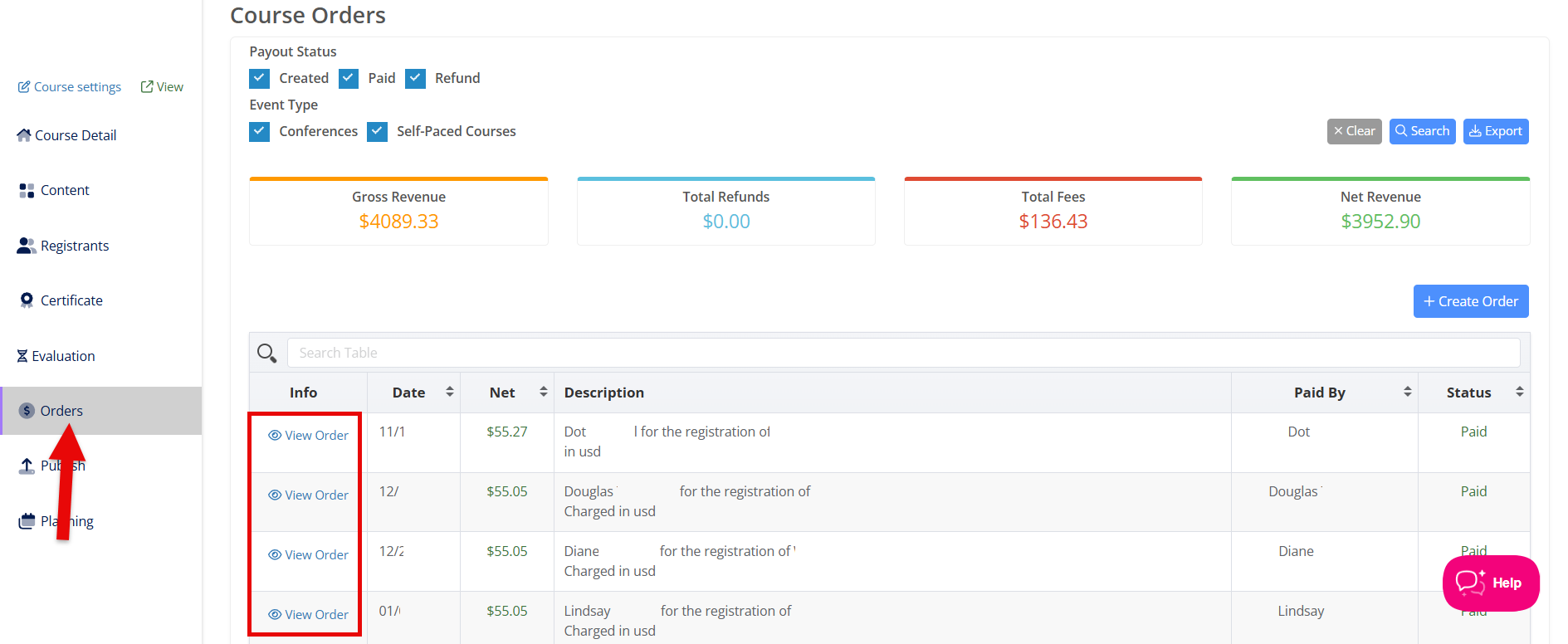
Under the Orders menu, you will be able to view financial information about your course and view details about individual payments and orders.
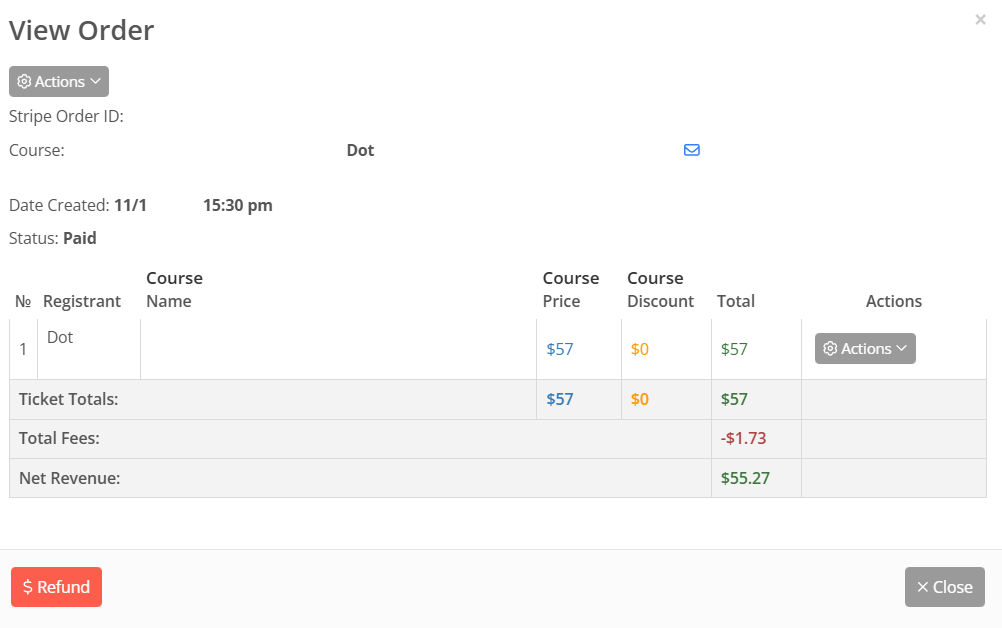
Click the View Order button next to the payment to see more information about that payment.
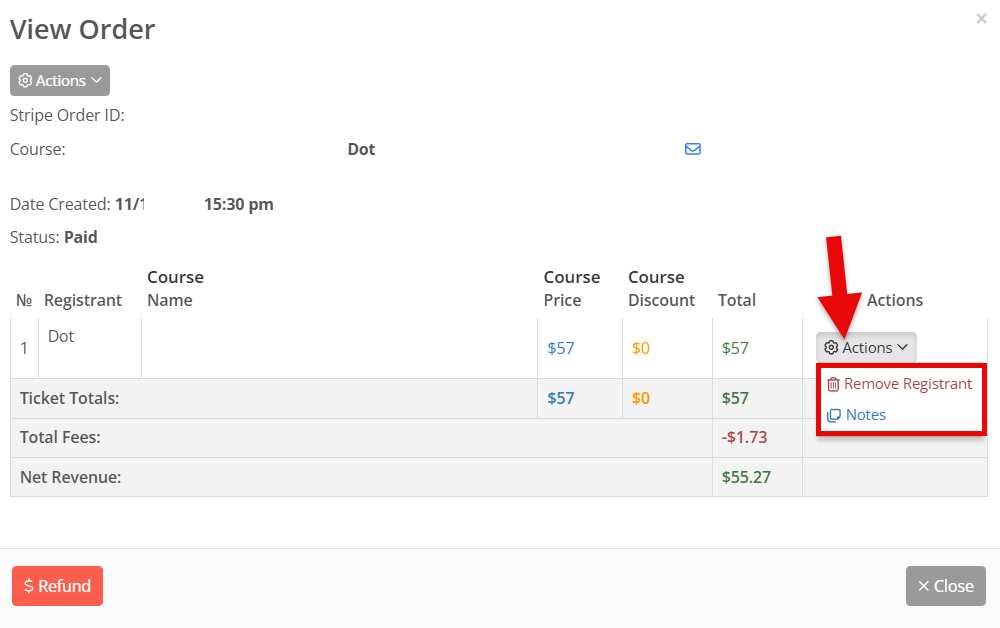
From the Actions menu, located to the right of the payment information, you can add notes or remove the attendee associated with that payment.
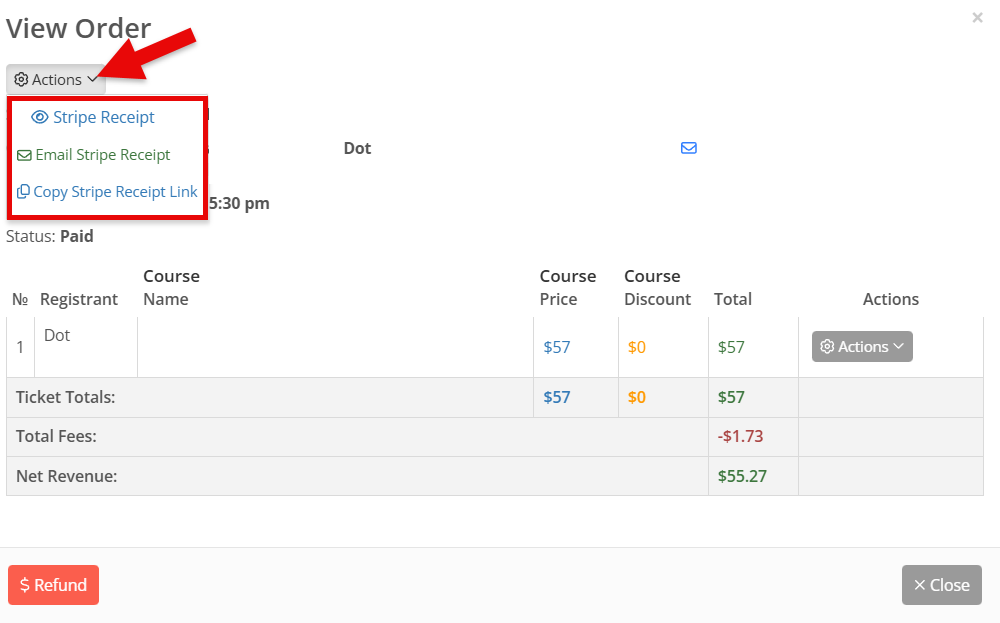
From the Actions menu in the upper left hand corner of the modal, you can access information associated with the payment's receipt, including:
- View the receipt associated with the payment
- Email the receipt to the payor
- Copy a link to the receipt
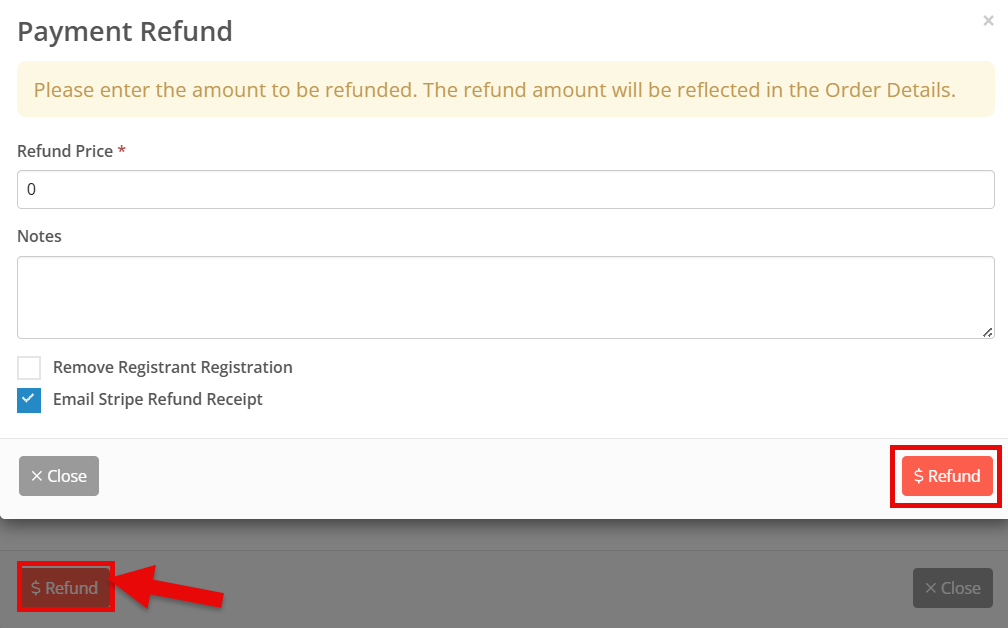
Click the Refund button to process a full or partial refund to the payor. In the Refund Price field, enter the dollar amount you wish to be refunded to the payor. It is optional to add any notes to the refund. To finalize your refund, click the Refund button.
💡 Issuing a refund will not remove your attendee from the Attendee Roster. If you are issuing a refund and wish to remove the attendee from your course, make sure to do so either by using the Remove function on the modal, or by navigating to the Registrant Roster and removing the attendee there.