Registrants
The Registrant menu displays a variety of information regarding your course's registered attendees.
Attendees who register via your Landing Page will automatically appear in the Registrant Roster, and you can manually add individual attendees by clicking the green + Add Registrant button or upload a batch of attendees by clicking the blue Upload Registrants and following the prompts. You can download an Excel sheet with all your attendee data by clicking the blue Download Registrants. You can also use the Search field to look up a particular attendee.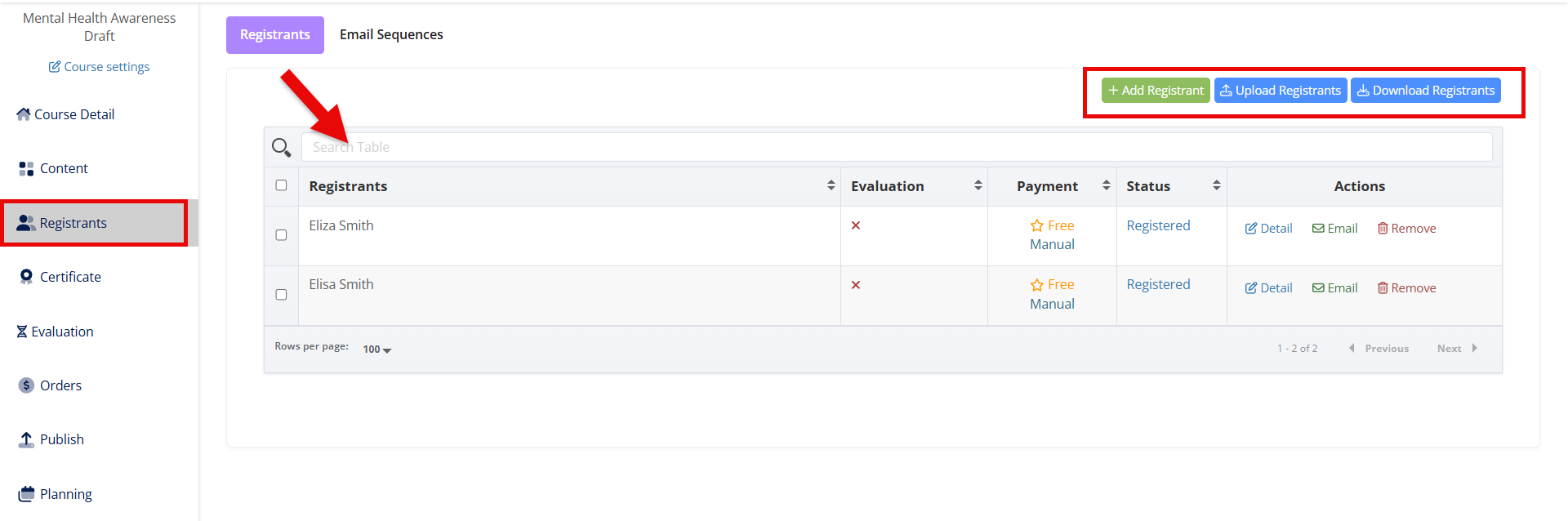
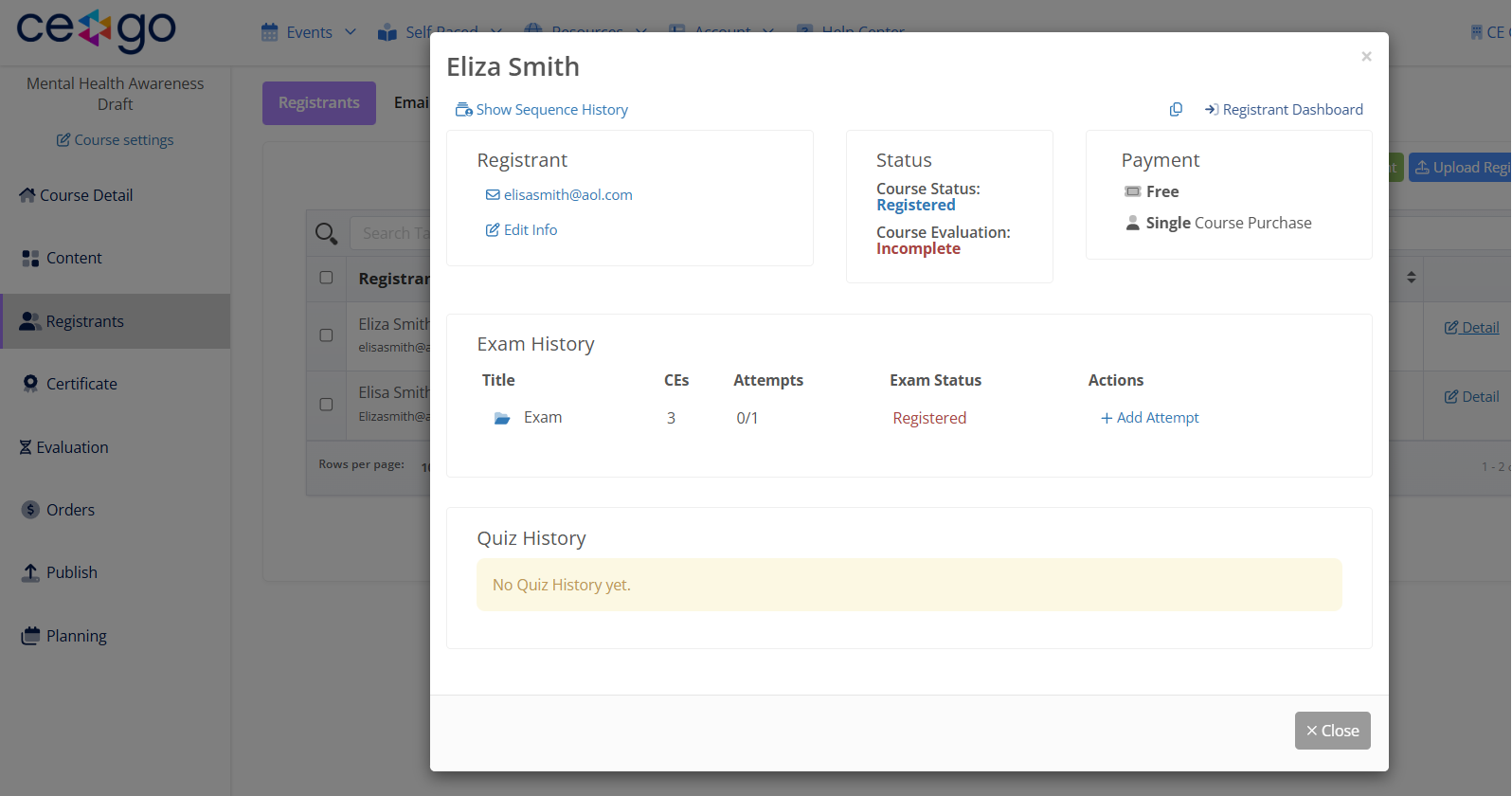
Under the Actions column, select Detail to open the Attendee Modal with information about that attendee. The Attendee Modal will include any emails sent to the attendee, if the attendee still has access to the course, if they've completed the course, how much they paid, and editable attendee information such as name and email.
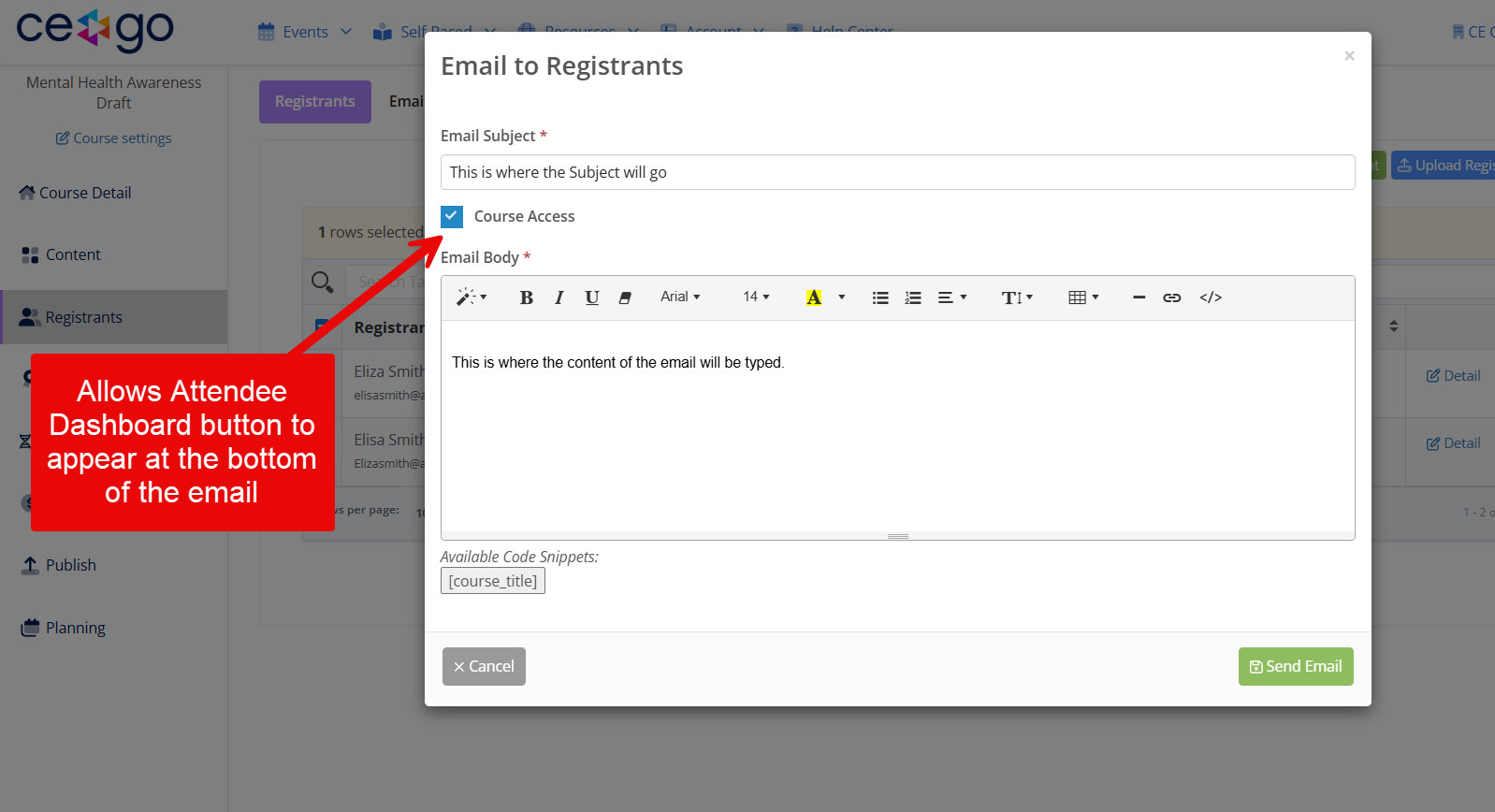
Checking the box next to a name will make the Actions menu appear, where you can immediately send an email to the attendee that has been selected.
💡 Selecting the Email button that corresponds with the participant will create the same pop up, but only allows you to email 1 attendee at a time, while the checkbox allows for any amount.
 Enter your Email Subject, check the box if you want their Attendee Dashboard to appear in the email, create the content of the email, and hit Send Email.