
Email Sequences
The Email Sequences tab is located by selecting Registrants on the left hand menu. Email Sequences are automated emails triggered by an attendee registering. You can also use Scheduled Emails to set a specific date and time an email will be sent. 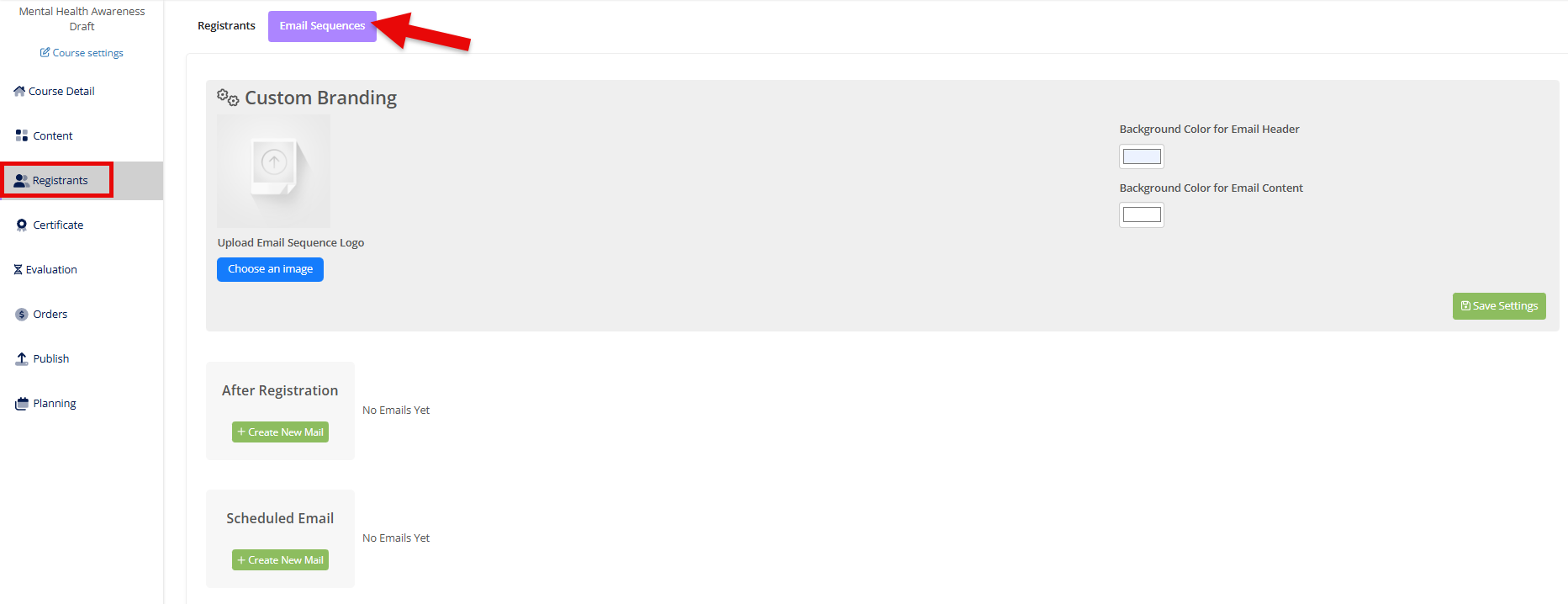
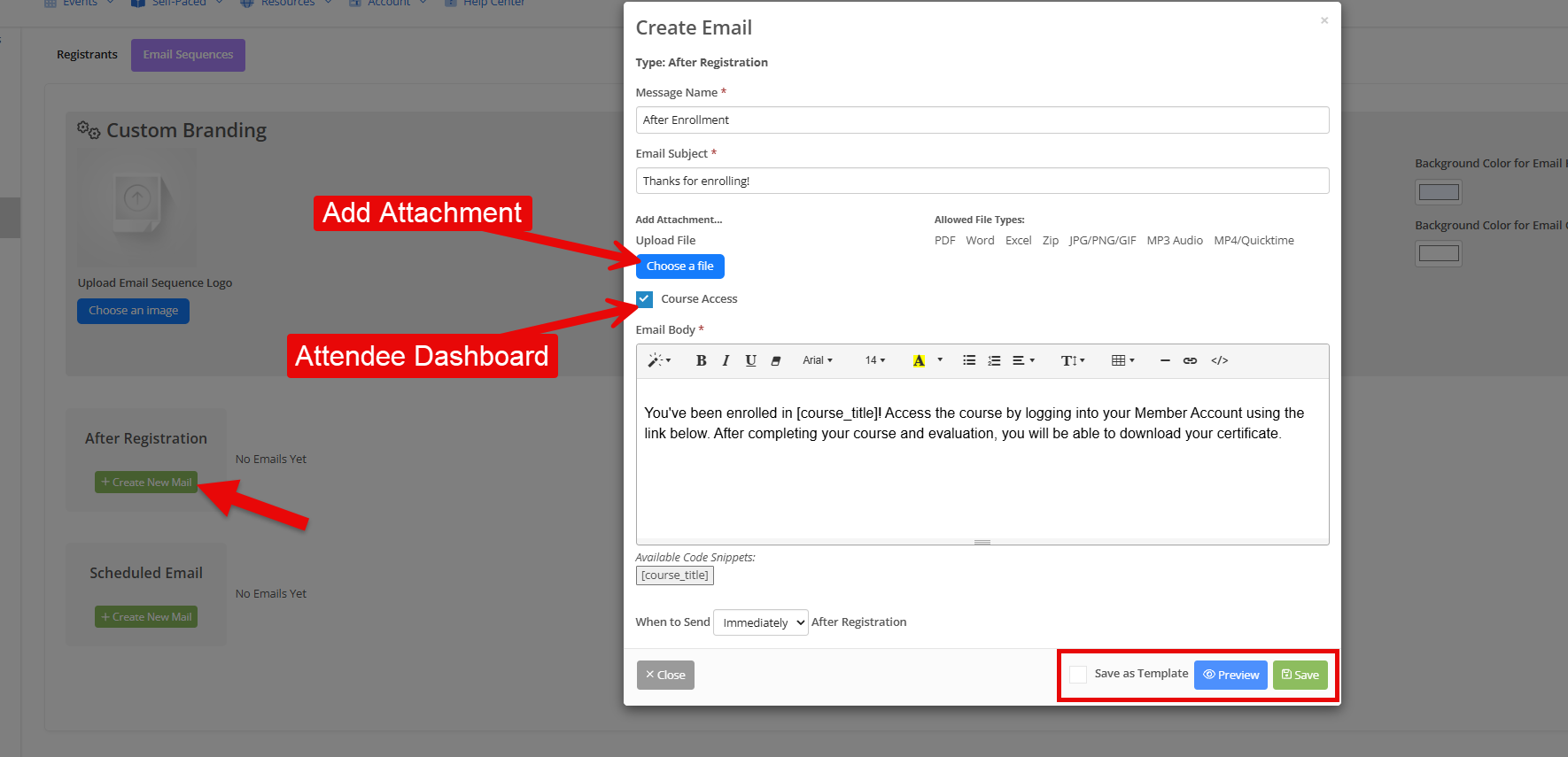
On the Email Sequences tab, you can add an Email Sequence by clicking the green + Create New Mail button listed under the corresponding sequence option. Customize your email by adding or editing the name of the email, the subject line of the email, and the body of the email. You can additionally customize the email by including the recipient's Attendee Dashboard link and adding attachments. Use the Preview button to view how your email will appear to recipients and click Save before exiting the window.
💡 Check the Save as Template box to add the customized email to your templates for use with future courses.
Scheduled Emails
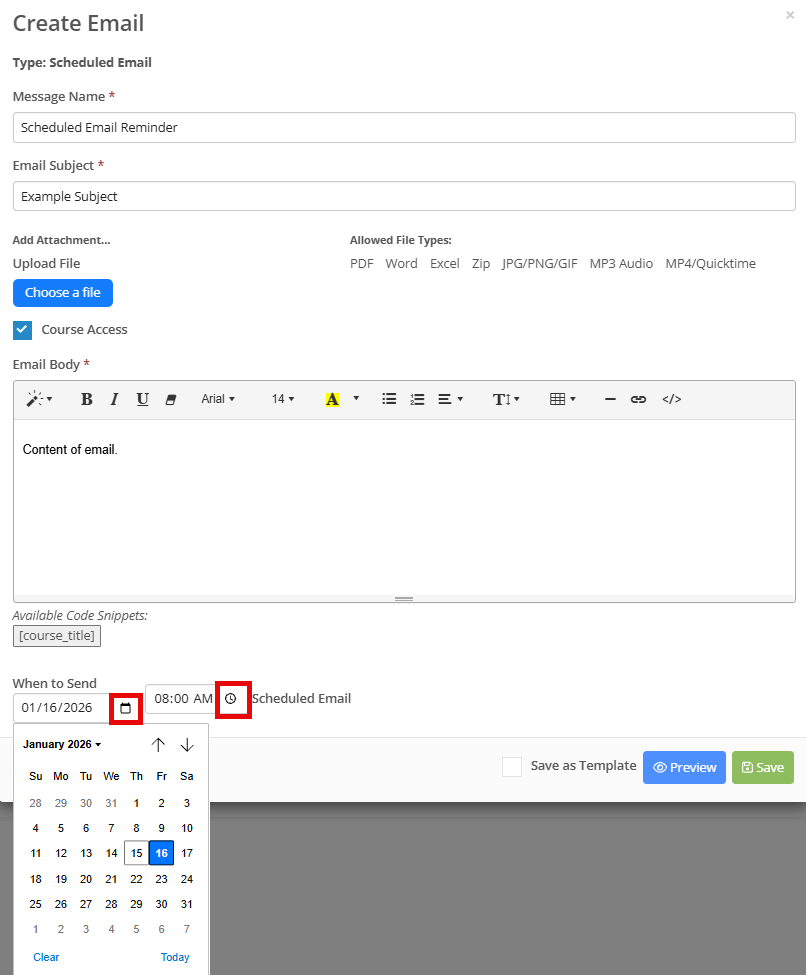
Scheduled Emails allow you to select a specific date and time to send an email. Click the green + Create New Mail button under Schedule Emails to add a Scheduled Email. Add a message name, the email subject, and body of the email. You can also customize Scheduled Emails to include the Attendee Dashboard or attachments.
💡 Click the small calendar and clock icons to easily select a specific date and time.
Custom Branding
Under Custom Branding, you can add a logo and select colors for all of your emails. Click the blue Choose an Image button and follow the prompts to add an image, then click Save. To change background color for your email header or your email content, click the color box and select the desired color, then click Save Colors.

💡 When you Preview any of the emails you've setup, you'll be able to see what the custom branding will look like.

💡 You can add a logo and select colors to be included by default for every course and event in your CE-Go account under Global Email Templates.