
Group Discussion
Discussion
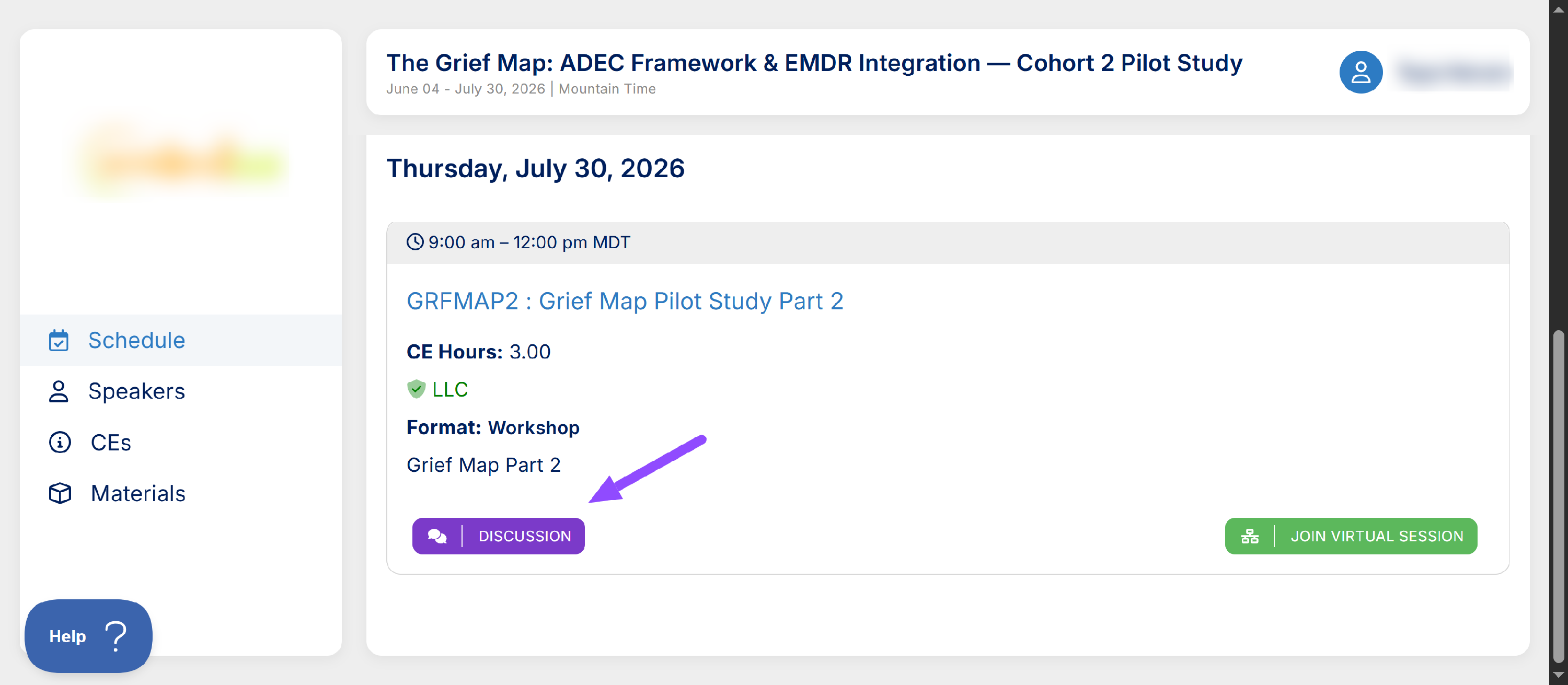
The Discussion feature lets you connect and chat with other attendees in a session-specific group chat. If a session has Discussion enabled, you will see a purple Discussion button on your Attendee Dashboard.
Step 1: Open the Discussion
From your Attendee Dashboard, locate the session you want to join. Click the purple Discussion button next to that session.
Note: Not all sessions will have a Discussion button. If you do not see it, group chat has not been enabled for that session.
Step 2: Set Your Profile to Public
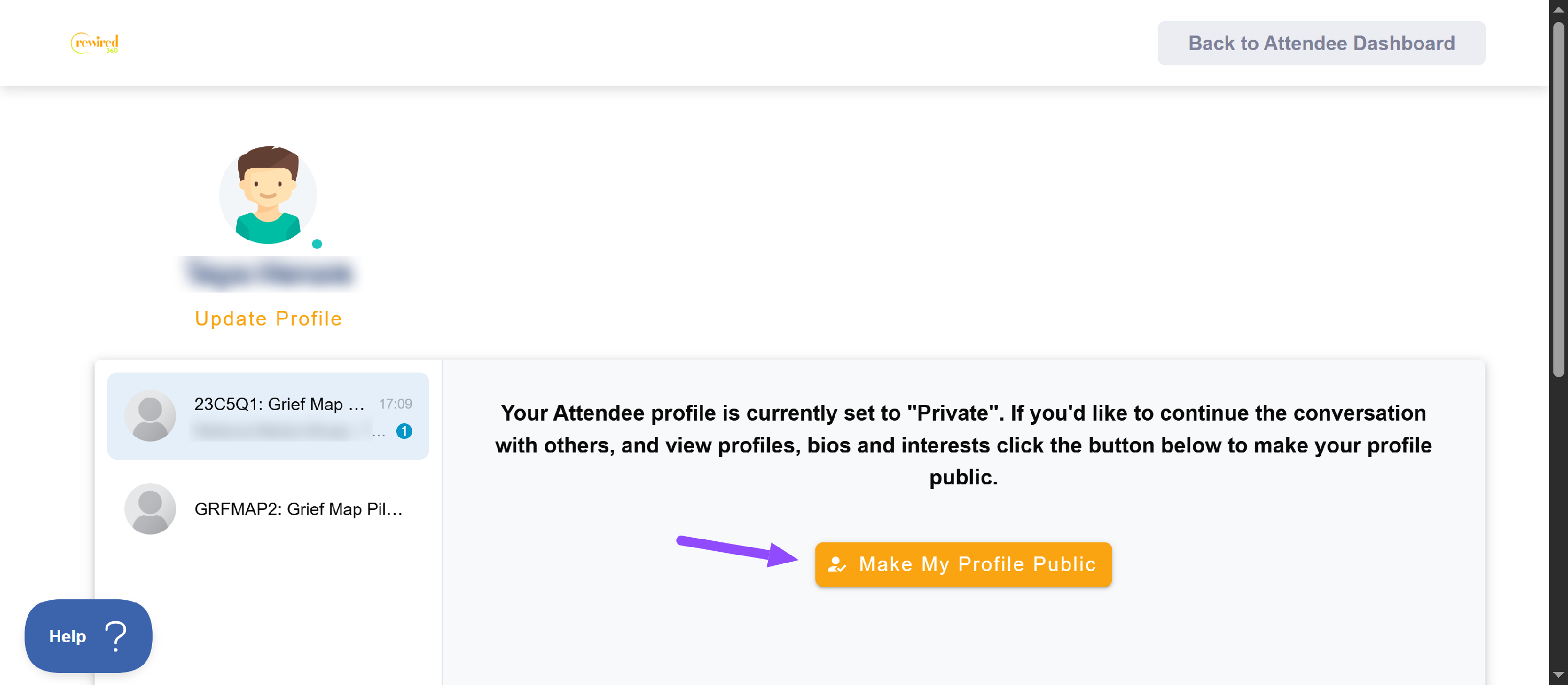
When you first open the Discussion, you may see a notice that your Attendee profile is set to "Private." You will need to make your profile public in order to participate in the chat and view other attendees’ profiles, bios, and interests.
Click the Make My Profile Public button to continue.
Step 3: Participate in the Discussion
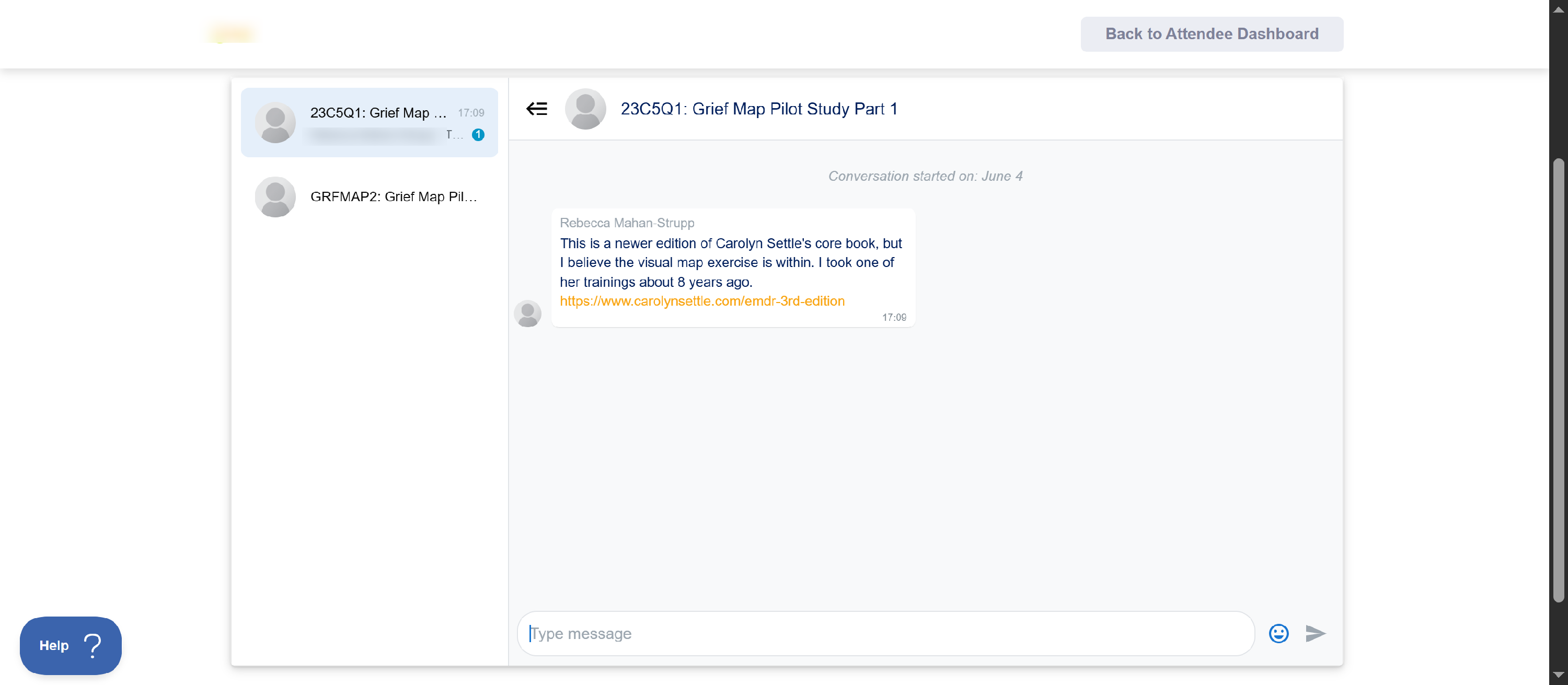
Once your profile is public, you will be taken into the group chat for that session. You can read messages from other attendees and join the conversation.
To send a message, click the text box at the bottom of the screen that says Type message, type your message, and press the send arrow.
The left panel shows all sessions with an active Discussion. You can switch between sessions by clicking a different session in the panel.
Leaving the Discussion
When you are done, click the Back to Attendee Dashboard button in the upper right corner to return to your Attendee Dashboard.