
Zapier Integration
Need to automate your CE workflows without developer help? The CE-Go Zapier integration lets you connect your events and courses to thousands of other apps — Google Sheets, Slack, your CRM, email tools, and more.
In this guide:
- What can you do with this integration?
- Request access
- Connect CE-Go to Zapier
- Available actions
- Working with multiple results
- Common issues
What can you do with this integration?
Here are some popular ways CE-Go users automate their workflows:
- Sync event registrations to Google Sheets — Keep a live spreadsheet of all attendees
- Send Slack notifications — Alert your team when events are coming up
- Update your CRM automatically — Push attendee data to Salesforce, HubSpot, or other tools
- Send follow-up emails — Trigger emails based on course completion status
- Generate reports — Export event and course data on a schedule
Request access
The Zapier integration is not enabled by default. To get access:
- Contact your CE-Go account manager
- Provide the email address you use for your Zapier account
- Your manager will enable the integration and add you to the authorized users list
Once approved, you'll be able to connect CE-Go to Zapier.
Connect CE-Go to Zapier
Step 1: Enable the integration in CE-Go
- Log into your CE-Go account
- Go to Settings → Integrations
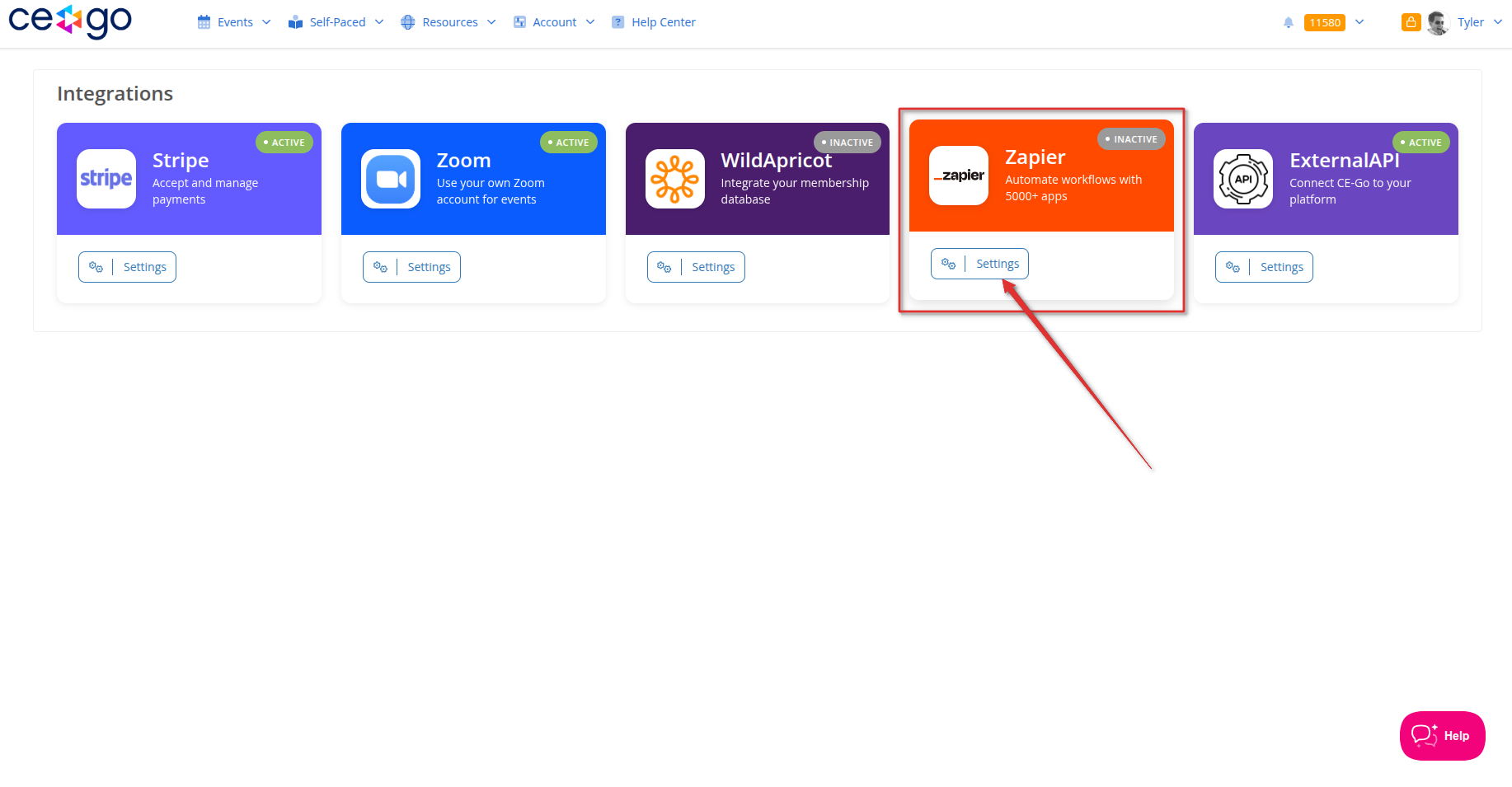
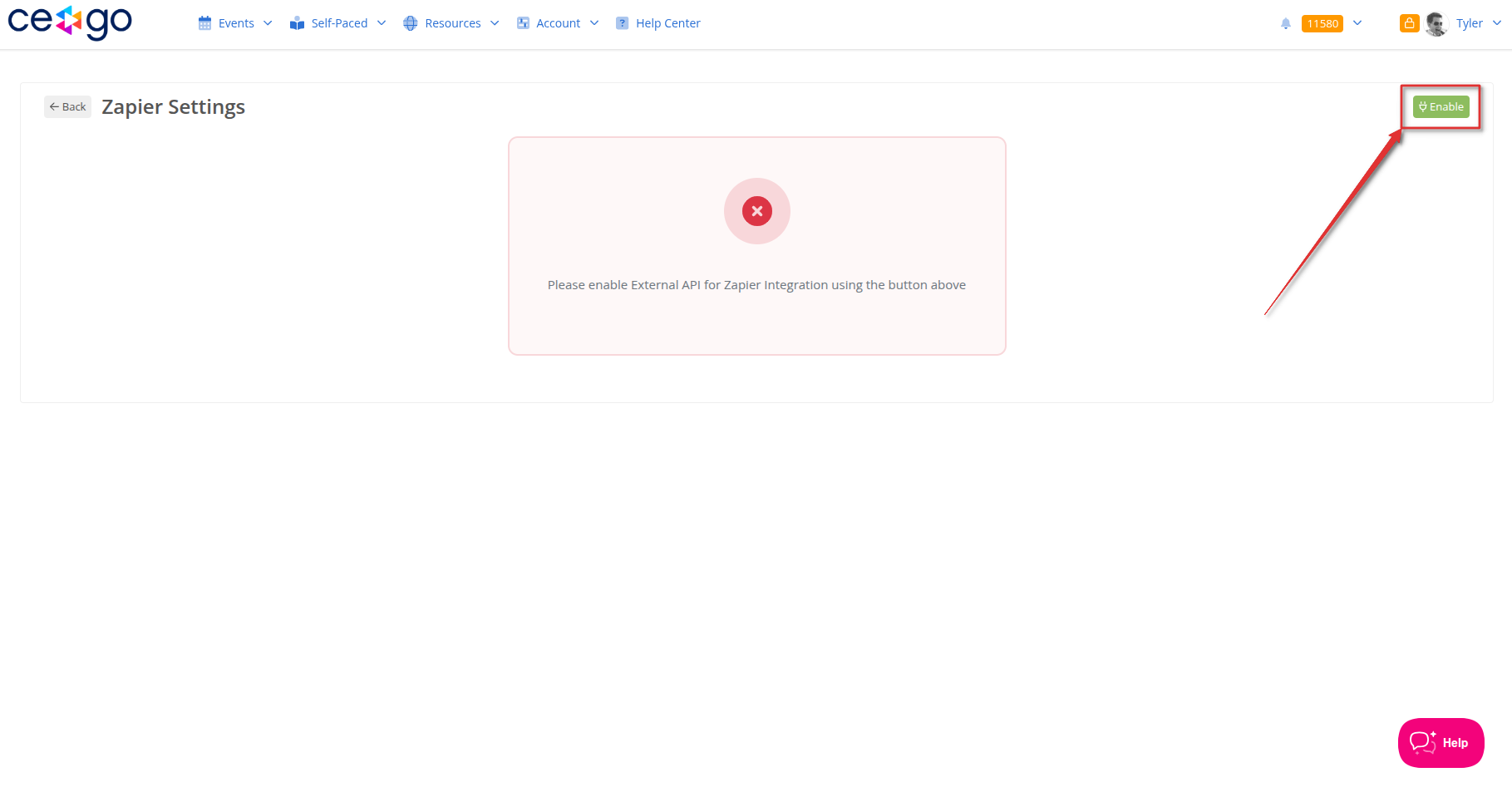
- Find "Zapier Integration" and toggle it ON
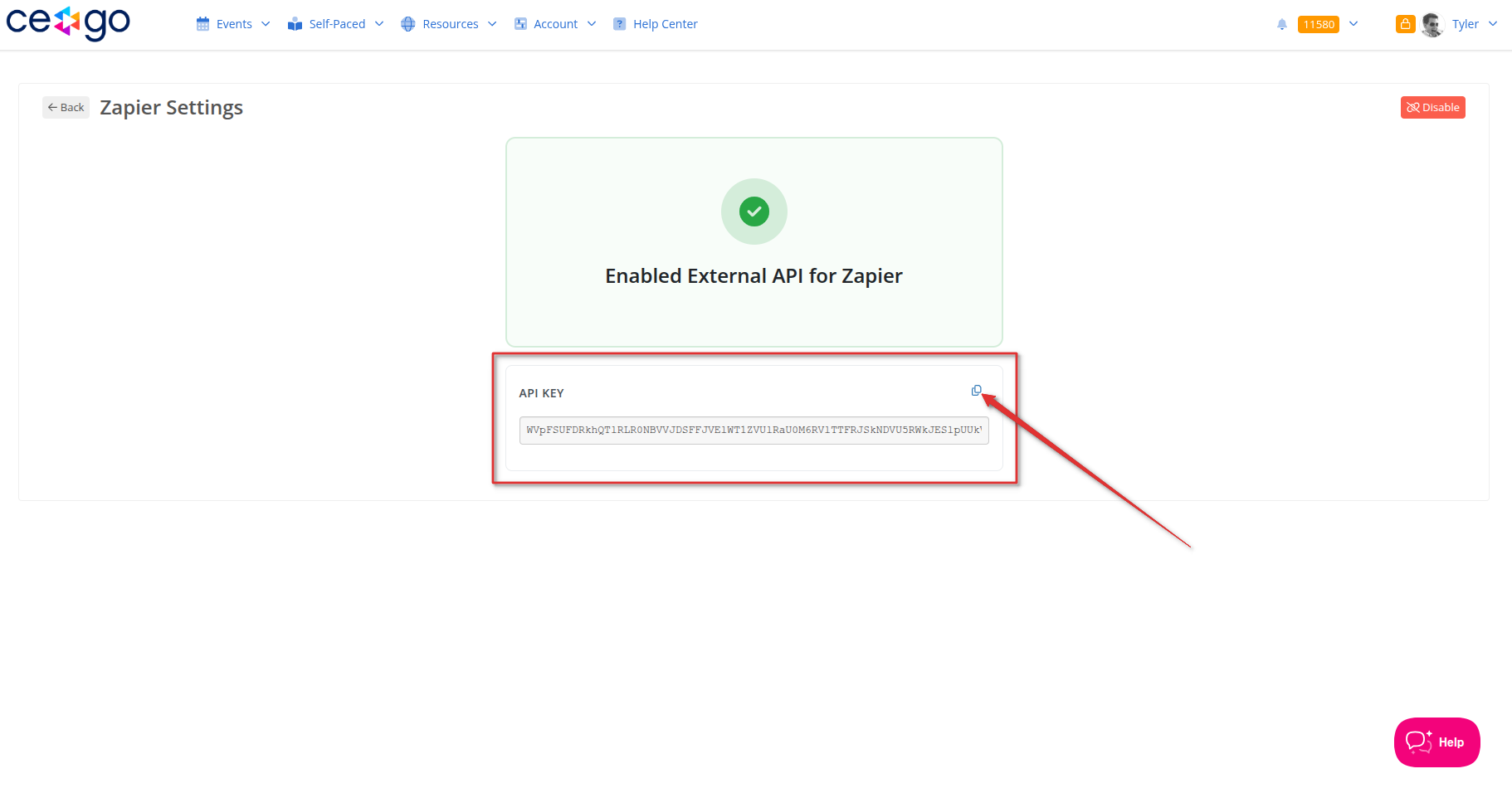
- Copy your API Key — you'll need this in the next step
Step 2: Connect in Zapier
- Log into zapier.com
- Create a new Zap or go to App Connections and click Add connection
- Search for "CE-Go"
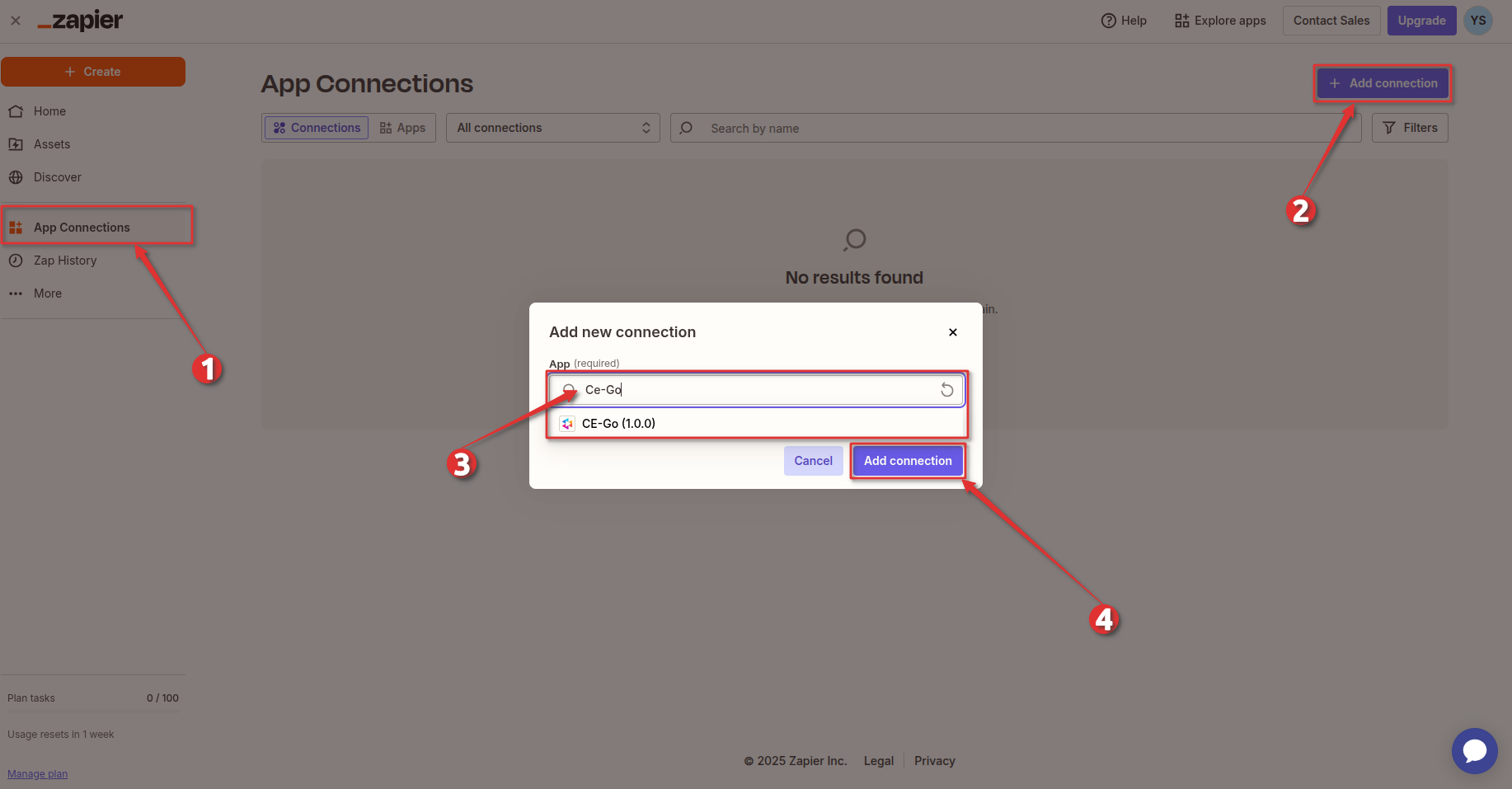
- Click Sign in and paste your API Key from CE-Go
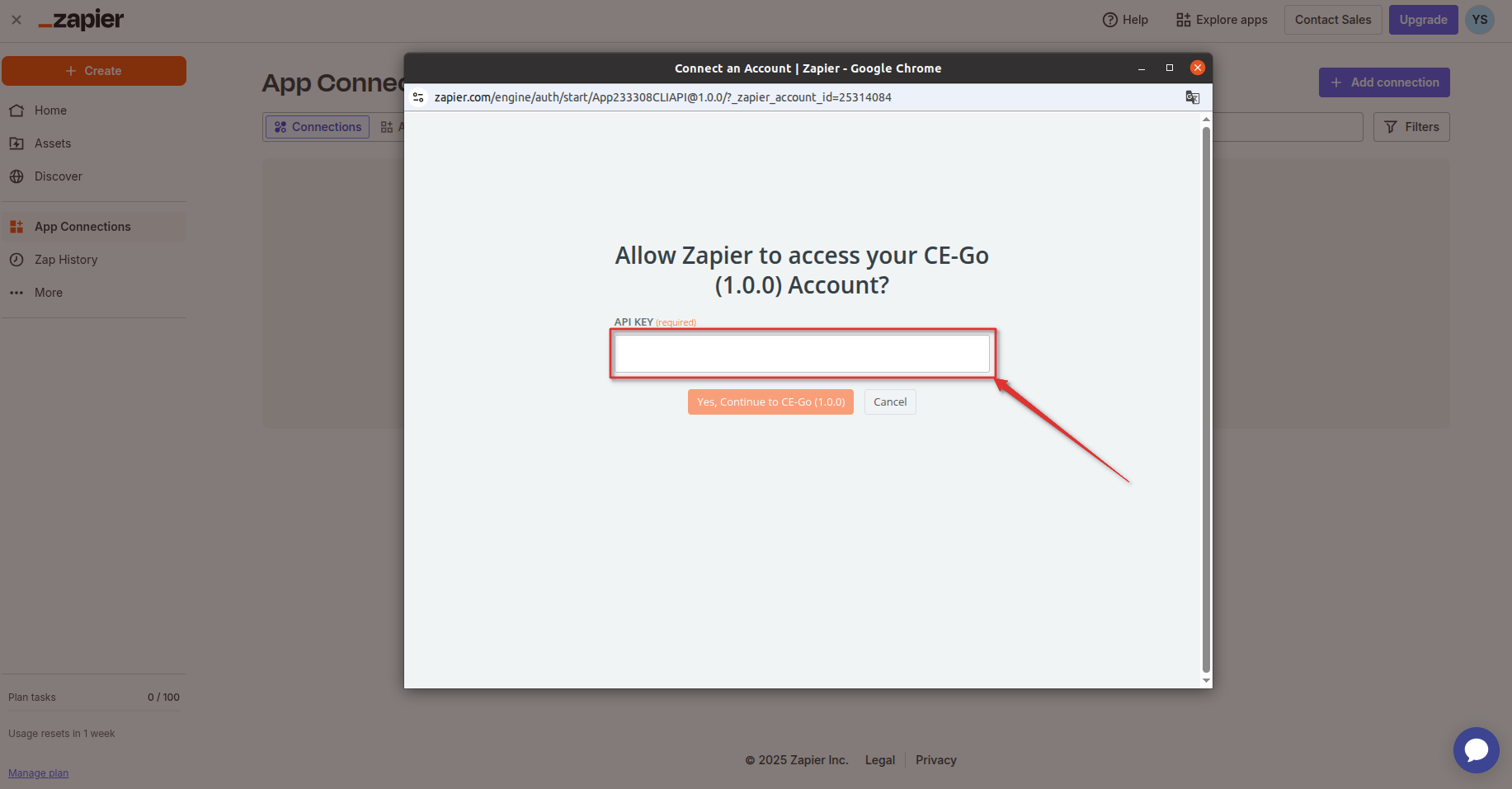
- Your connection will show as "[Organization Name] - [Owner Name]"
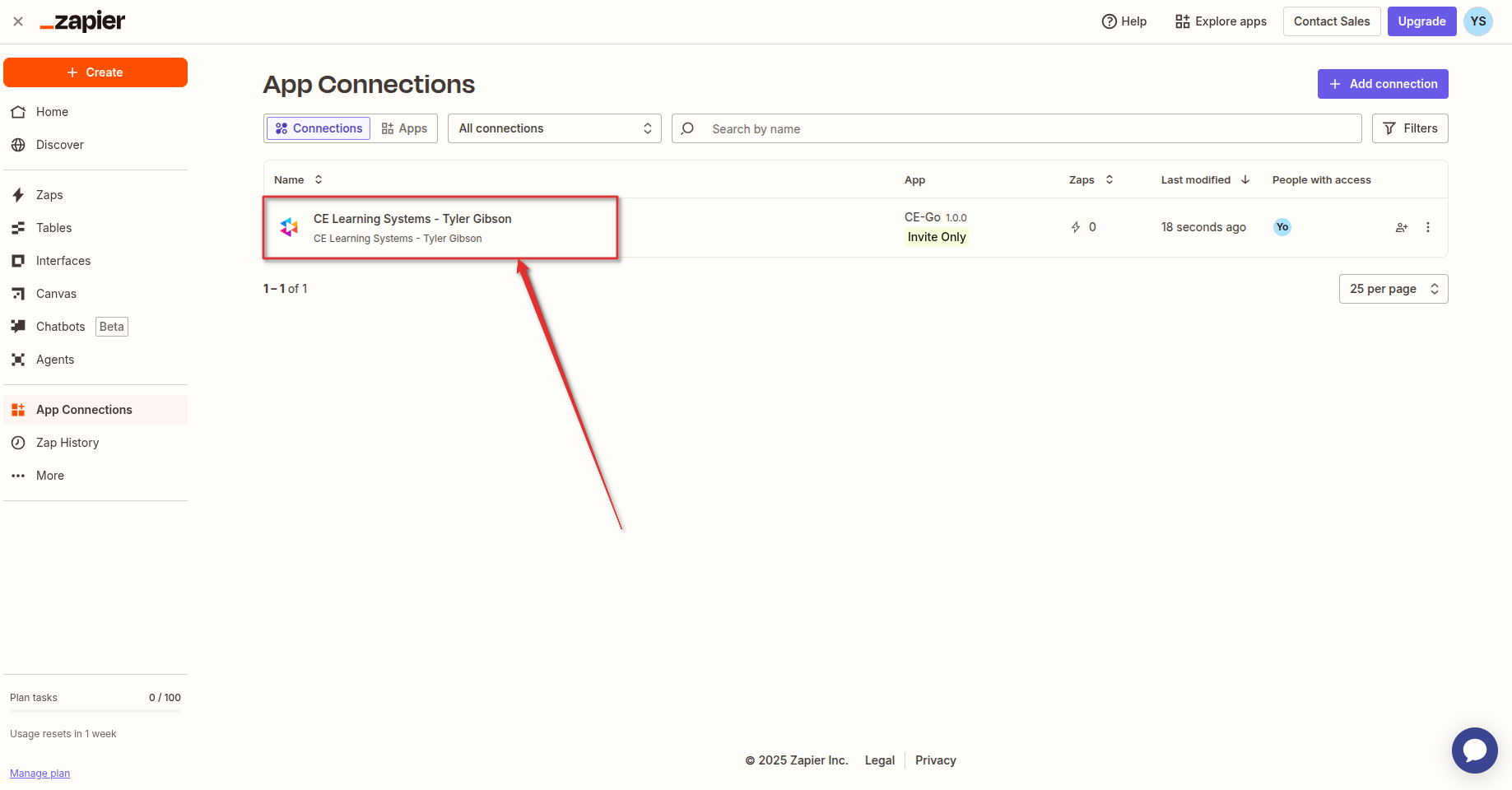
You're all set! Now you can use CE-Go in any Zap.
Available actions
The CE-Go integration provides four actions to pull data from your account.
Get Events
Retrieve your events with optional filtering by status, date, and type.
📋 View input and output fields
Input fields:
| Field | Description | Required |
|---|---|---|
| page | Page number for pagination | No (default: 1) |
| limit | Number of events per page | No (default: 100) |
| status | Filter: "Upcoming Events" or "Past Events" | No |
| date_from | Show events from this date (YYYY-MM-DD) | No |
| date_to | Show events through this date (YYYY-MM-DD) | No |
| event_type | Filter: "In-Person", "Online", or "Hybrid" | No |
Output fields:
| Field | Description |
|---|---|
| event_id | Unique identifier for the event |
| event_name | Name of the event |
| start_at | Event start date and time (ISO 8601) |
| end_at | Event end date and time (ISO 8601) |
| timezone | Timezone of the event |
| event_type | "In-Person", "Online", or "Hybrid" |
| registered_attendees_count | Registered users |
| passed_attendees_count | Users who passed evaluation |
| failed_attendees_count | Users who failed evaluation |
| absent_attendees_count | Users marked as absent |
| in_progress_attendees_count | Users currently in progress |
| location | Physical location (empty for online events) |
| event_days | Array of event dates (YYYY-MM-DD format) |
Get Courses
Retrieve your courses with optional pagination.
📋 View input and output fields
Input fields:
| Field | Description | Required |
|---|---|---|
| page | Page number for pagination | No (default: 1) |
| limit | Number of courses per page | No (default: 100) |
Output fields:
| Field | Description |
|---|---|
| course_id | Unique identifier for the course |
| course_name | Name of the course |
| publication_date | Date when course was published (YYYY-MM-DD) |
| registered_attendees_count | Total registered users |
| passed_attendees_count | Users who completed successfully |
| failed_attendees_count | Users who failed |
| in_progress_attendees_count | Users currently working on the course |
Get Event Users
Get users registered for a specific event.
📋 View input and output fields
Input fields:
| Field | Description | Required |
|---|---|---|
| event_id | ID of the event | Yes |
| page | Page number for pagination | No (default: 1) |
| limit | Number of users per page | No (default: 100) |
| status | Filter: "registered", "passed", "failed", or "absent" | No |
| evaluation | Filter: "completed" or "incomplete" | No |
| registered_from | Filter users registered from this date (YYYY-MM-DD format) | No |
| registered_to | Filter users registered up to this date (YYYY-MM-DD format) | No |
Output fields:
| Field | Description |
|---|---|
| user_id | Unique identifier for the user |
| name | Full name |
| first_name | First name |
| last_name | Last name |
| Email address | |
| status | "registered", "passed", "failed", or "absent" |
| evaluation | "completed" or "incomplete" |
| address__address | Street address |
| address__city | City |
| address__state | State or province full name |
| address__state_code | State or province code |
| address__phone | Phone number |
| address__zip | Zip/postal code |
| license__number | Professional license number |
| license__state | License state |
| license__discipline | Professional discipline |
| registered_at | Registration date and time (ISO 8601) |
Get Course Users
Get users enrolled in a specific course.
📋 View input and output fields
Input fields:
| Field | Description | Required |
|---|---|---|
| course_id | ID of the course | Yes |
| page | Page number for pagination | No (default: 1) |
| limit | Number of users per page | No (default: 100) |
| status | Filter: "registered" or "passed" | No |
| evaluation | Filter: "completed" or "incomplete" | No |
| registered_from | Filter users registered from this date (YYYY-MM-DD format) | No |
| registered_to | Filter users registered up to this date (YYYY-MM-DD format) | No |
Output fields:
Same as Get Event Users (see above).
Get Users from Events
Retrieve users registered for events with optional filtering.
📋 View input and output fields
Input fields:
| Field | Description | Required |
|---|---|---|
| page | Page number for pagination (default: 1) | No |
| limit | Number of users per page (default: 100) | No |
| status | Filter: "registered", "passed", "failed", or "absent" | No |
| evaluation | Filter: "completed" or "incomplete" | No |
| registered_from | Filter users registered from this date (YYYY-MM-DD format) | No |
| registered_to | Filter users registered up to this date (YYYY-MM-DD format) | No |
Output fields:
| Field | Description |
|---|---|
| id | Unique identifier for the user |
| name | Full name |
| first_name | First name |
| last_name | Last name |
| Email address | |
| items[]event_id | Unique identifier for the event |
| items[]name | Event name |
| items[]evaluation | "completed" or "incomplete" |
| items[]status | "registered", "passed", "failed", or "absent" |
| items[]registered_at | Registration date and time (ISO 8601) |
| items[]address__address | Street address |
| items[]address__city | City |
| items[]address__state | State or province full name |
| items[]address__state_code | State or province code |
| items[]address__phone | Phone number |
| items[]address__zip | Zip/postal code |
| items[]license__number | Professional license number |
| items[]license__state | License state |
| items[]license__discipline | Professional discipline |
Get Users from Courses
Retrieve users enrolled in courses with optional filtering.
📋 View input and output fields
Input fields:
| Field | Description | Required |
|---|---|---|
| page | Page number for pagination (default: 1) | No |
| limit | Number of users per page (default: 100) | No |
| status | Filter: "registered" or "passed" | No |
| evaluation | Filter: "completed" or "incomplete" | No |
| registered_from | Filter users registered from this date (YYYY-MM-DD format) | No |
| registered_to | Filter users registered up to this date (YYYY-MM-DD format) | No |
Output fields:
| Field | Description |
|---|---|
| id | Unique identifier for the user |
| name | Full name |
| first_name | First name |
| last_name | Last name |
| Email address | |
| items[]course_id | Unique identifier for the course |
| items[]name | Course name |
| items[]evaluation | "completed" or "incomplete" |
| items[]status | "registered" or "passed" |
| items[]registered_at | Registration date and time (ISO 8601) |
| items[]address__address | Street address |
| items[]address__city | City |
| items[]address__state | State or province full name |
| items[]address__state_code | State or province code |
| items[]address__phone | Phone number |
| items[]address__zip | Zip/postal code |
| items[]license__number | Professional license number |
| items[]license__state | License state |
| items[]license__discipline | Professional discipline |
Working with multiple results
By default, Zapier returns only the first result from search actions. If you need all results (for example, all attendees of an event), follow these steps:
How to enable "Return all results"
- In your Zap, click on the CE-Go action step (e.g., "Get Event Users")
- Go to the Configure tab
- Scroll down to find the "Return all results" option
- Toggle it ON
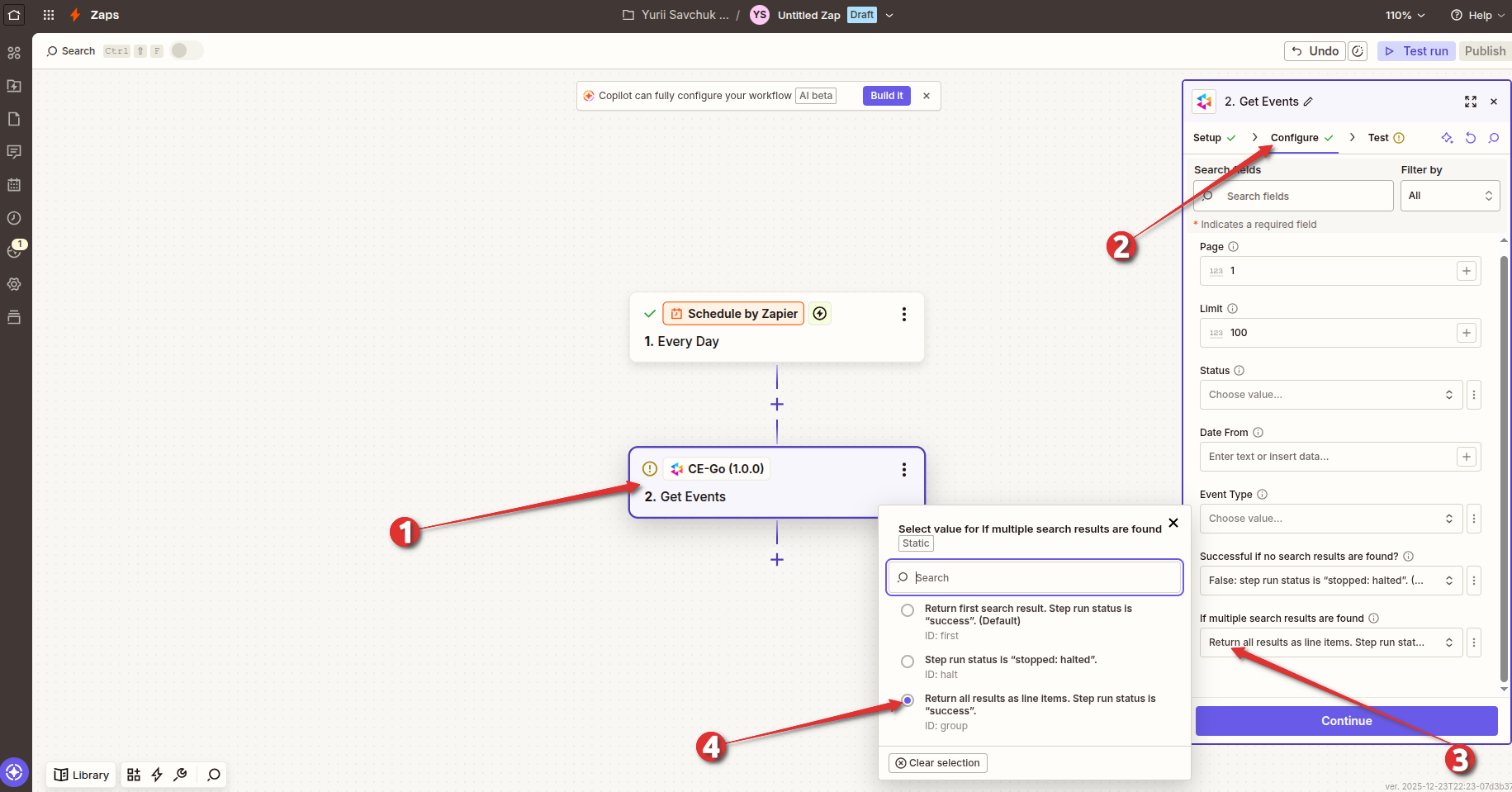
- Now all matching records will be returned as line items
Common issues
Can't find CE-Go in Zapier?
The integration requires approval. Contact your CE-Go account manager to make sure your Zapier email has been added to the authorized list.
Getting "Unauthenticated" errors?
Check that the Zapier integration is turned ON in your CE-Go settings, and try reconnecting your account.
Dropdown menus are empty?
Make sure you have events or courses in your CE-Go account. The dropdowns pull live data.
Not seeing recent changes?
Zapier runs on a schedule. Data updates based on your Zap's frequency setting (every 1-15 minutes depending on your Zapier plan).
Only getting one result?
Enable "Return all results" in the step configuration. See Working with multiple results above.
Get started
Ready to build your first Zap? Check out Zapier's Getting Started Guide for step-by-step instructions.
Need help? Contact your CE-Go account manager or reach out to Zapier Support.