Certificate
The Certificate tab is where you can customize and preview your certificate.
Add your Logo or Signature to a certificate by clicking the blue Choose an Image button and following the prompts.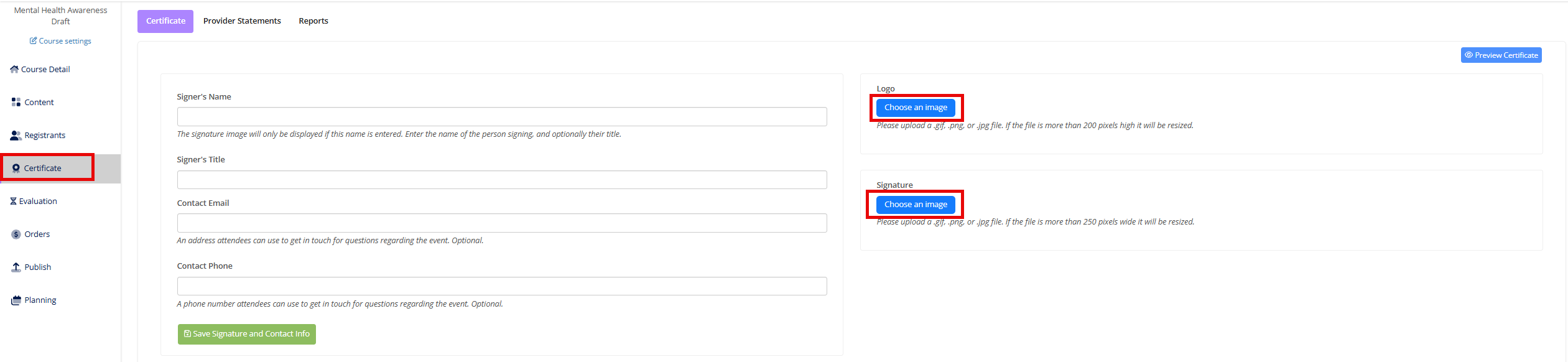
If adding a Signature, you will also have the option to add your Signer's Name, Title, and other information to your certificate. After adding the desired information, click Save Signature and Contact Info.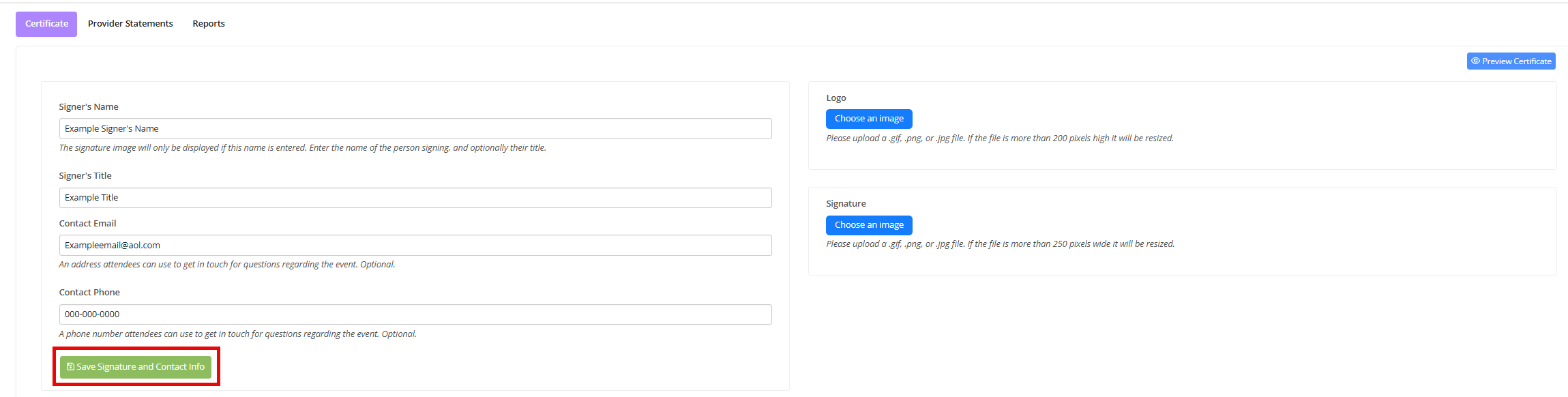
You can customize the phrase that precedes the total number of CE credits indicated on your certificate. Edit the Educational Hours Language field and click Save.
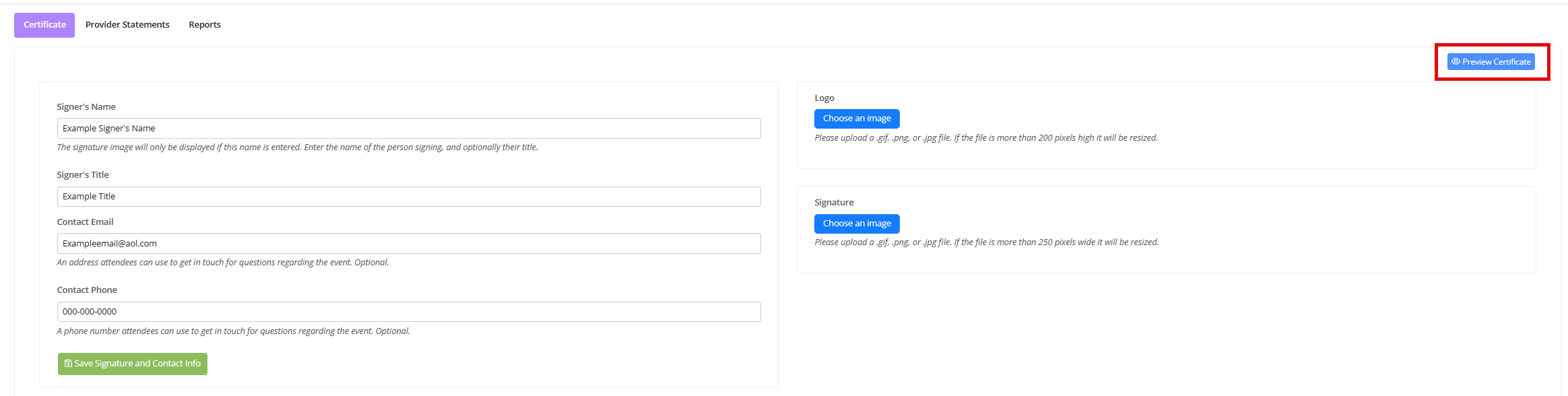
Click Preview Certificate to download a sample of your certificate. If you have applied your approvals to your course under the Approval Statement, the approval statements will also appear on your sample certificate. For more information on adding your approvals to your course, see Provider Statements.
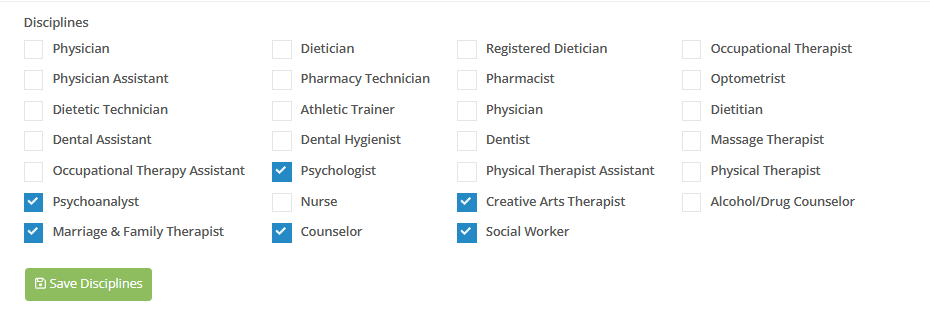
On the Certificate tab, you can also add the relevant Disciplines. Use the corresponding check boxes and hit Save Disciplines.
💡For Co-Sponsored courses, your Account Manager will add the relevant Disciplines after your review.