
Connecting Wild Apricot to CE-Go
We recommend you use a large screen device for this process – such as a laptop, desktop PC, or tablet.
- First, Log In on Wild Apricot. This link will open in a new browser tab.
- Go to your Wild Apricot Admin Dashboard. By default this is the Admin view button on your Wild Apricot site.
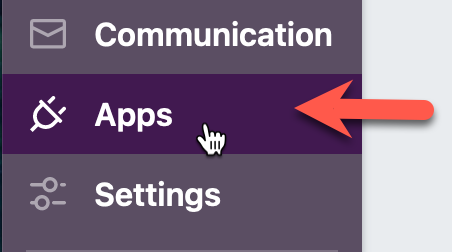
- On the admin main navigation menu, click Apps
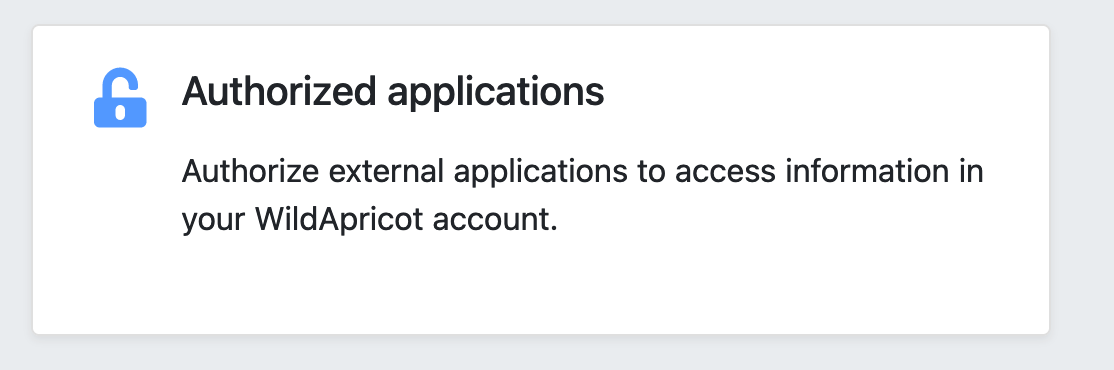
 On the Apps page, click On the Apps page, click Authorized applications.
 On the Authorized applications page near the top, click the Authorize application button.

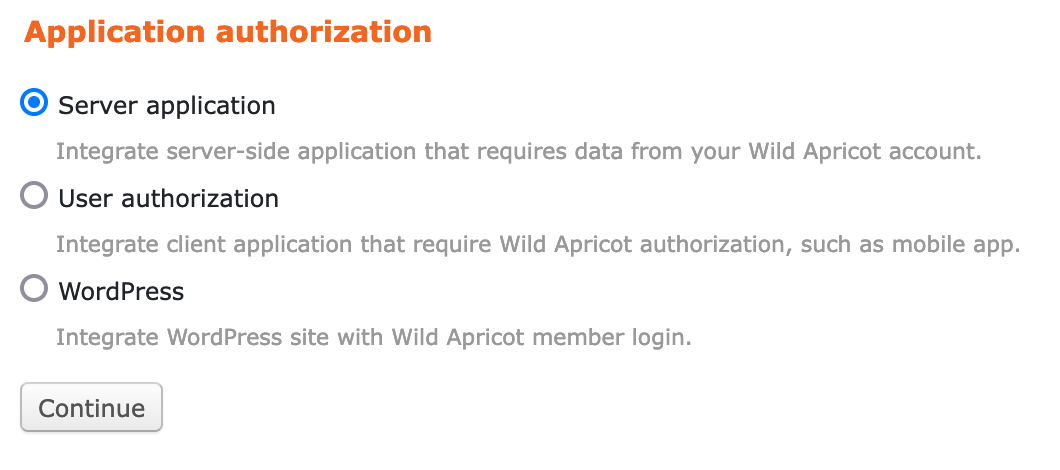
- Next select Server application and click Continue.
- On the Application details, enter CE-Go as the Application name and select Read only.
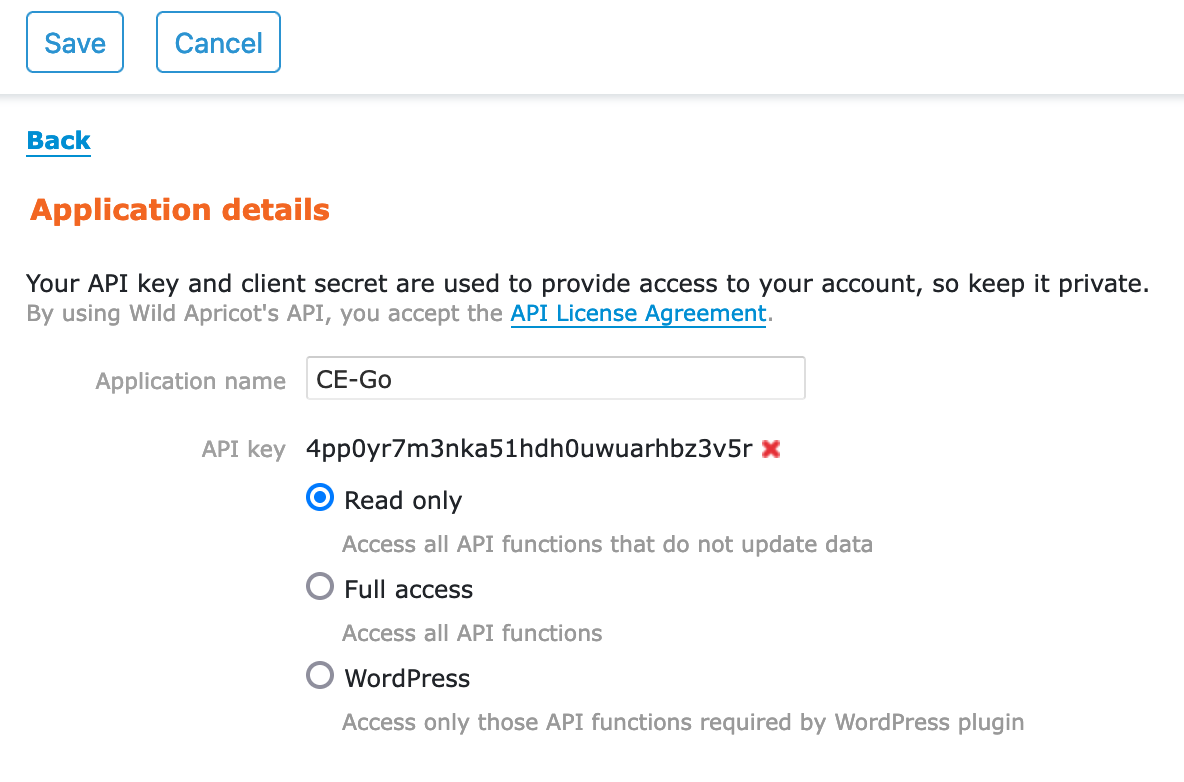
- Copy the API key text: double-click the key (the string of random characters), then right click it and select Copy.
- Click Save at the top of the form.
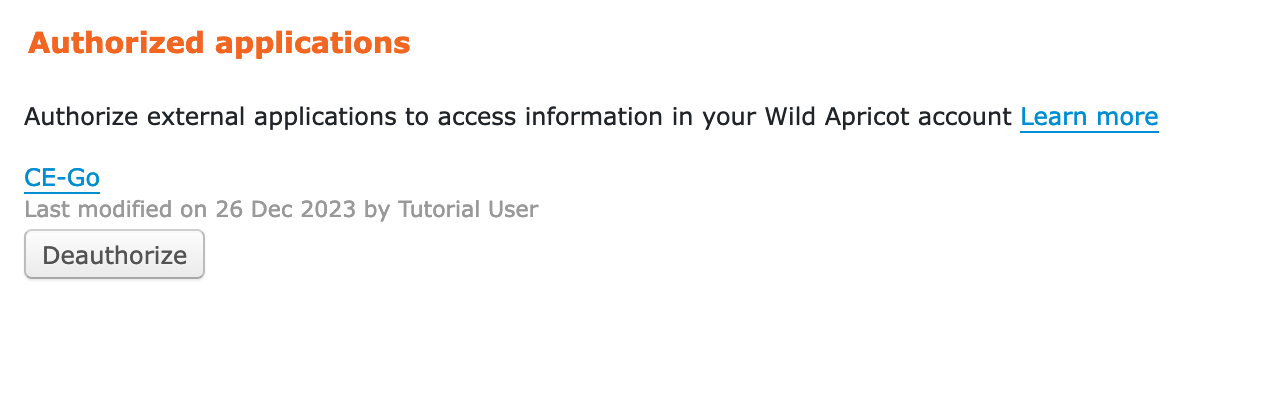
- Verify that you see CE-Go listed in your authorized applications page:
- Go back to the CE-Go settings page for Wild Apricot and click the Connect Wild Apricot button.
- On the pop-up form, paste the key you copied earlier. Right-click the form field and select Paste.
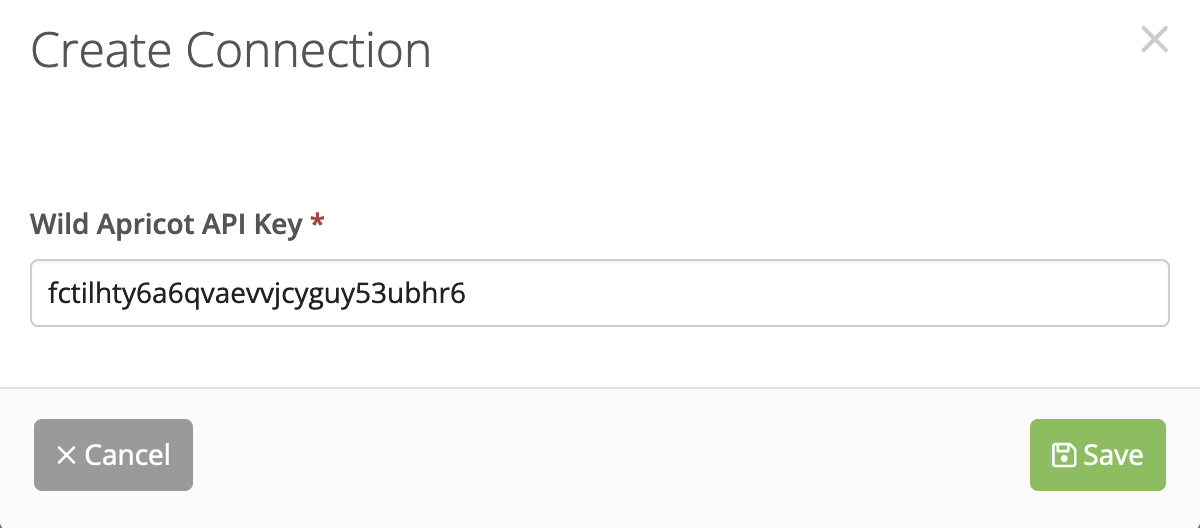 Click Save. You should now see a connection successful message.
 Congratulations. Your Wild Apricot connection is now set up.
 On the Apps page, click On the Apps page, click Authorized applications.
 On the Authorized applications page near the top, click the Authorize application button.
 Click Save. You should now see a connection successful message.
 Congratulations. Your Wild Apricot connection is now set up.